Install WowUp and launch it for the first time
Your system may warn you the first time you open WowUp. Here's how to get past it, and what WowUp does on its first run.
Before you start
Download the right file for your system from the WowUp home page. Pre-release builds are on the GitHub releases page.
Windows
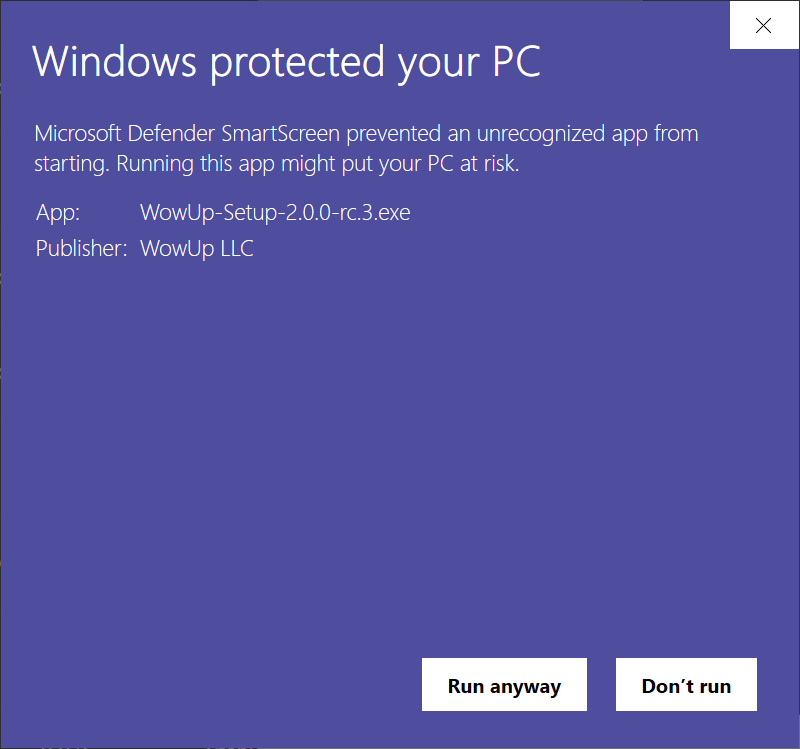
You may see “Windows protected your PC” the first time you run the installer or the portable app.
- Select More info under the message.
- Check that the publisher says WowUp LLC.
- Select Run anyway.
macOS
The Mac app is notarized by Apple, so macOS only checks with you once.
- Open the downloaded DMG and drag WowUp into Applications.
- Open WowUp from Applications or Launchpad.
- When macOS says WowUp was downloaded from the internet, select Open.
Pick the Apple Silicon download for M-series Macs and the Intel one for older Macs.
Linux
The AppImage needs permission to run. In the folder you downloaded it to:
chmod +x WowUp-*.AppImage
Then double-click the AppImage, or run it from the terminal.
What happens on first launch
WowUp looks for World of Warcraft in its usual install locations and adds every game version it finds, including PTR and beta clients.
It then scans each AddOns folder and matches what's there to where it came from, so your addons show up in My Addons without reinstalling anything.