Application options
How WowUp starts, looks, notifies you and updates itself.
Options › Application sets how WowUp itself behaves.
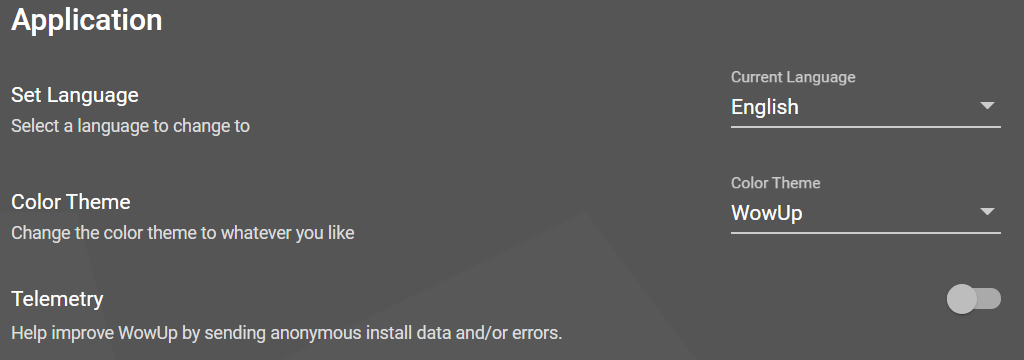
Appearance
- Color Theme changes WowUp's colors.
- Scale zooms the whole app. The keyboard shortcuts do the same.
- Set Language changes WowUp's language. WowUp restarts to apply it.
- Keep last opened tab opens an addon's details on the tab you used last.
Starting and closing
- Launch WowUp with system starts WowUp when you log in.
- Launch WowUp minimized starts it without showing the window.
- Minimize on Close keeps WowUp running when you close its window: in the notification area on Windows, or the menu bar on macOS.
Notifications
- Enable System Notifications shows system notifications, for example when addons were updated automatically.
- Enable App Badge Notification shows the number of addon updates on WowUp's icon. The count covers all your game versions, not only the one selected.
Updates
Application Release Channel switches between Stable and Beta versions of WowUp. Beta builds get fixes and features first, but may have problems.
Links
- Enable the wowup:// URI protocol lets Install buttons on this site open WowUp.
- Handle CurseForge download links, in WowUp with CurseForge, makes WowUp install addons when you download them on the CurseForge website. The CurseForge app then stops handling those links.
Advanced
- Telemetry sends anonymous install data and errors that help improve WowUp. It contains nothing personal, and turning it off sends nothing.
- Enable Hardware Acceleration: turning it off can fix rendering problems in WowUp. Changing it restarts WowUp.
- Force IPv4 (disable IPv6): if addon downloads keep failing with a network error, your network's IPv6 may be broken, and this can fix it. Changing it restarts WowUp.
- Enable Symlink Support lets WowUp scan symlinked folders in your AddOns folder, for addon developers. Updating an addon replaces its symlink with a real folder. If you don't know what a symlink is, you don't need this.